How to Find and Copy Your Transaction ID
Every transaction in NukaPay has a unique identifier (ID). You may need this ID when contacting support or tracking your payment.
1
Open Transaction History
Tap the history icon in the app header to open the list of all your transactions.
2
Select a Transaction
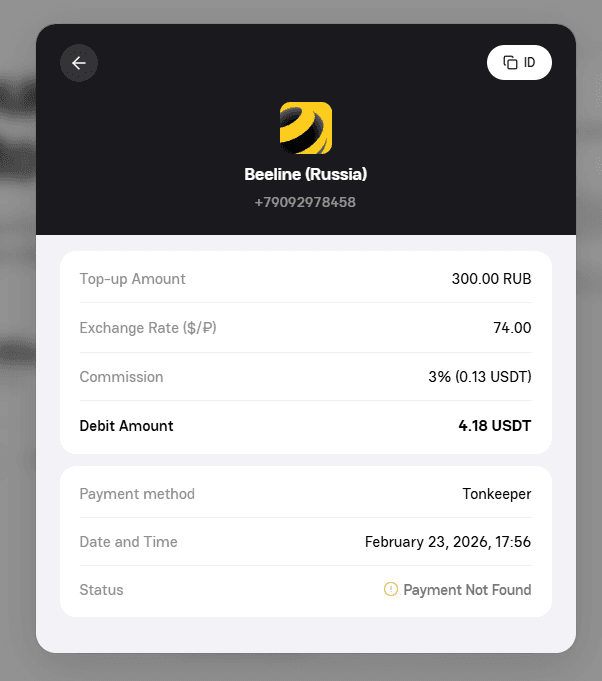
Find and tap on the transaction you need. The detail view will open showing all payment information.
3
Copy the ID
In the top-right corner of the detail screen, you'll see a white "ID" button. Tap it to copy the transaction ID to your clipboard. The button will briefly show "Copied" to confirm.
Tip
When contacting support, always include your transaction ID — it helps us find your payment faster.